Create a mesh#
A mesh is a discrete representation of the simulation domain.
Meshes are produced by Mesher (which wraps Gmsh) and
are accessible in the EasyFEA.FEM module.
Note
To import an existing mesh file instead of creating one from scratch, see Import a mesh.
Geometry objects#
Mesh generation relies on manipulating the geometric objects listed below, which are available in the EasyFEA.Geoms namespace:
Class |
Description |
|---|---|
Single point; optional fillet radius |
|
Straight segment between two points |
|
Full circle defined by center and diameter |
|
Circular arc (from radius, center, or on-circle point) |
|
Closed polygon / spline from a list of points |
|
Closed loop assembled from |
|
Axis-aligned rectangle or box defined by two corners |
meshSize on any geometry object sets the local target element size.
isHollow=True (the default) means the geometry defines a hole
or boundary only;
isHollow=False means it defines a filled region.
Tip
All examples below use Display (matplotlib) for inline output.
For interactive 3D visualization, replace Display.Plot_Mesh(mesh) with
PyVista.Plot_Mesh(mesh) — see Post-process simulation results.
2D mesh#
Mesh_2D() meshes the surface of the geometry,
with optional inclusions (holes, filled regions), cracks, and local
refinement.
Simple rectangle#
from EasyFEA import Display, ElemType
from EasyFEA.Geoms import Domain

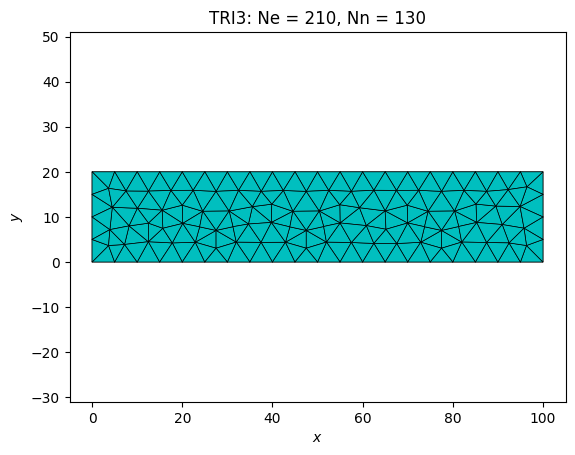
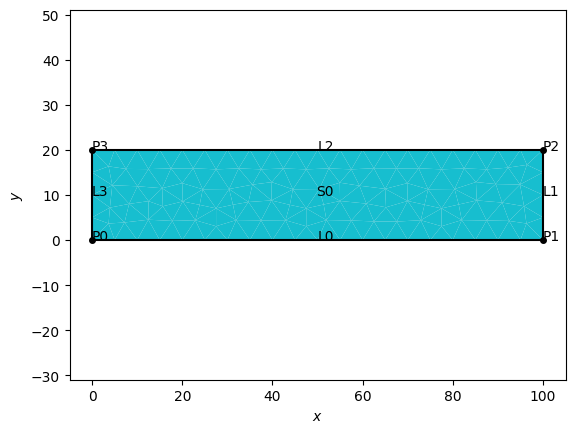
domain = Domain((0, 0), (100, 20), meshSize=5.0)
mesh = domain.Mesh_2D([], ElemType.TRI3)
Display.Plot_Mesh(mesh)
Display.Plot_Tags(mesh)
<Axes: xlabel='$x$', ylabel='$y$'>
Rectangle with a circular hole#
from EasyFEA import Display, ElemType
from EasyFEA.Geoms import Domain, Circle

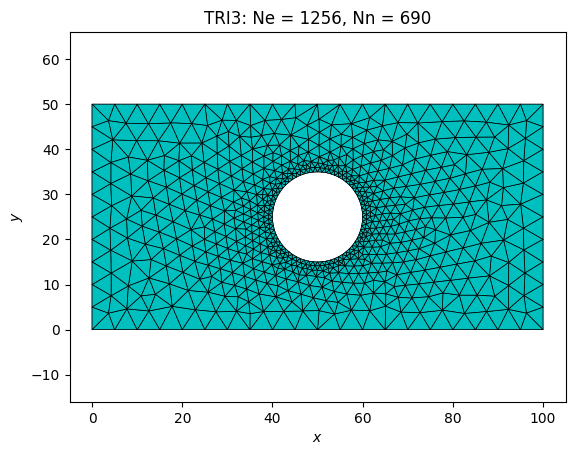
domain = Domain((0, 0), (100, 50), meshSize=5.0)
hole   = Circle(center=(50, 25), diam=20, meshSize=1.0, isHollow=True)

mesh = domain.Mesh_2D([hole], ElemType.TRI3)
Display.Plot_Mesh(mesh)
<Axes: title={'center': 'TRI3: Ne = 1256, Nn = 690'}, xlabel='$x$', ylabel='$y$'>
Structured quad mesh#
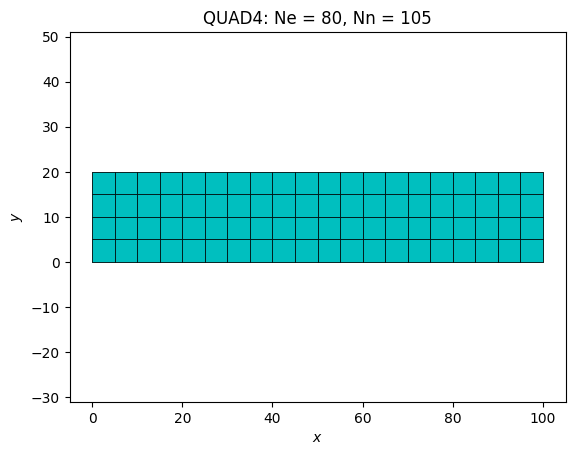
By setting isOrganised=True, you obtain a structured mesh that requires a structurable polygon consisting of four or three segments:
from EasyFEA import Display, ElemType
from EasyFEA.Geoms import Domain

domain = Domain((0, 0), (100, 20), meshSize=5.0)
mesh = domain.Mesh_2D([], ElemType.QUAD4, isOrganised=True)
Display.Plot_Mesh(mesh)
<Axes: title={'center': 'QUAD4: Ne = 80, Nn = 105'}, xlabel='$x$', ylabel='$y$'>
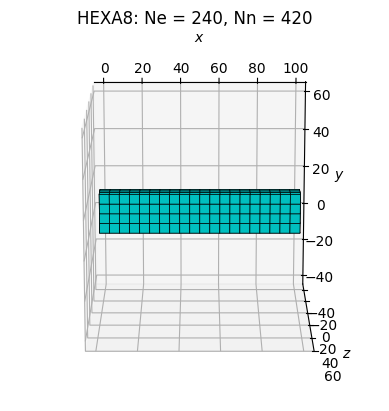
3D mesh by extrusion#
Mesh_Extrude() creates a 3D volume by
extruding a 2D surface along a direction vector.
from EasyFEA import Display, ElemType
from EasyFEA.Geoms import Domain

domain = Domain((0, 0), (100, 20), meshSize=5.0)
mesh = domain.Mesh_Extrude(
    extrude=(0, 0, 10),   # extrusion direction and length
    layers=[3],            # number of layers along the extrusion
    elemType=ElemType.HEXA8,
    isOrganised=True,
)
Display.Plot_Mesh(mesh)
<Axes3D: title={'center': 'HEXA8: Ne = 240, Nn = 420'}, xlabel='$x$', ylabel='$y$', zlabel='$z$'>
3D mesh by revolution#
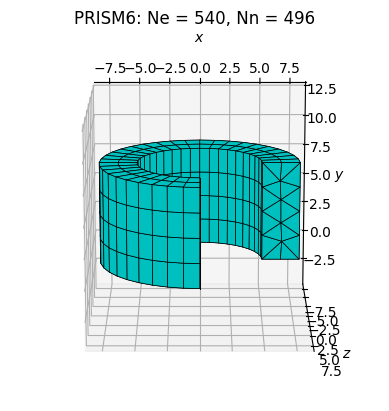
Mesh_Revolve() sweeps a 2D cross-section
around an axis to create an axisymmetric volume.
from EasyFEA import Display, ElemType
from EasyFEA.Geoms import Domain, Line, Point

cross_section = Domain((5, 0), (8, 8), meshSize=2.0)

# revolution axis: Y-axis
axis = Line((0, 0), (0, 1))

mesh = cross_section.Mesh_Revolve(
    axis=axis,
    angle=270,
    layers=[30],    # number of angular divisions
    elemType=ElemType.PRISM6,
)
Display.Plot_Mesh(mesh)
<Axes3D: title={'center': 'PRISM6: Ne = 540, Nn = 496'}, xlabel='$x$', ylabel='$y$', zlabel='$z$'>
Element types#
The types of isoparametric geometric elements that can be used to discretize the domain are available in the ElemType class.