Beginner’s Guide#
You can follow this guide along with this video.
Like any Python script, you should start by importing the core modules from the EasyFEA package:
from EasyFEA import Display, ElemType, Models, Simulations
from EasyFEA.Geoms import Domain
The most commonly used modules in EasyFEA are:
Module containing functions used to display simulations and meshes with matplotlib (https://matplotlib.org/). |
|
|
Implemented Lagrange isoparametric element types. |
Module implementing constitutive laws used in simulations. |
|
This module contains all available simulation classes. |
|
Module containing the geometric functions used to build meshes. |
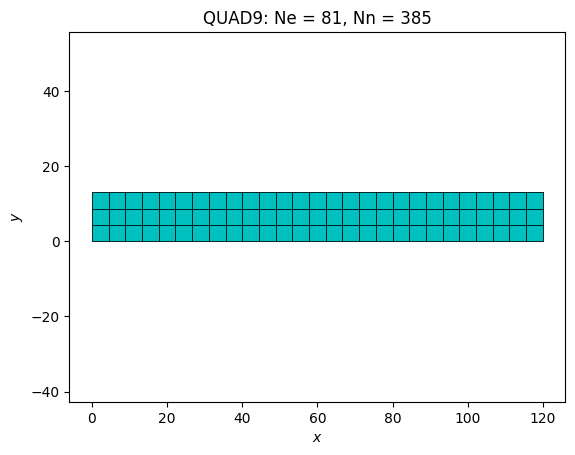
Let’s now create a 2D Mesh using a simple rectangular domain:
# ----------------------------------------------
# Mesh
# ----------------------------------------------
L = 120  # mm
h = 13

domain = Domain((0, 0), (L, h), h / 3)
mesh = domain.Mesh_2D([], ElemType.QUAD9, isOrganised=True)
Display.Plot_Mesh(mesh)
<Axes: title={'center': 'QUAD9: Ne = 81, Nn = 385'}, xlabel='$x$', ylabel='$y$'>
Next, define a linear Isotropic material and set up the Elastic simulation:
# ----------------------------------------------
# Simulation
# ----------------------------------------------
E = 210000  # MPa
v = 0.3
F = -800  # N

mat = Models.Elastic.Isotropic(2, E, v, planeStress=True, thickness=h)

simu = Simulations.Elastic(mesh, mat)
Once the simulation has been set up, defining boundary conditions, solving the problem, and visualizing the results is straightforward.
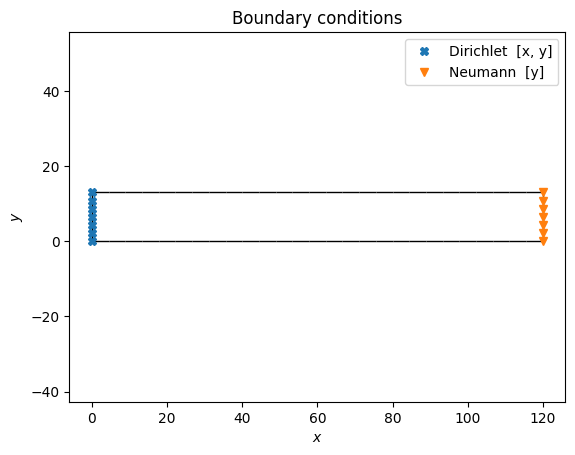
nodesX0 = mesh.Nodes_Conditions(lambda x, y, z: x == 0)
nodesXL = mesh.Nodes_Conditions(lambda x, y, z: x == L)

simu.add_dirichlet(nodesX0, [0, 0], ["x", "y"])
simu.add_surfLoad(nodesXL, [F / h / h], ["y"])

simu.Solve()

# ----------------------------------------------
# Results
# ----------------------------------------------
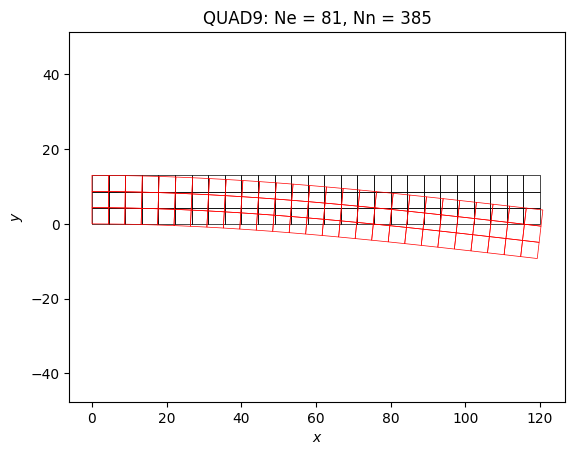
Display.Plot_Mesh(simu, deformFactor=10)
Display.Plot_BoundaryConditions(simu)
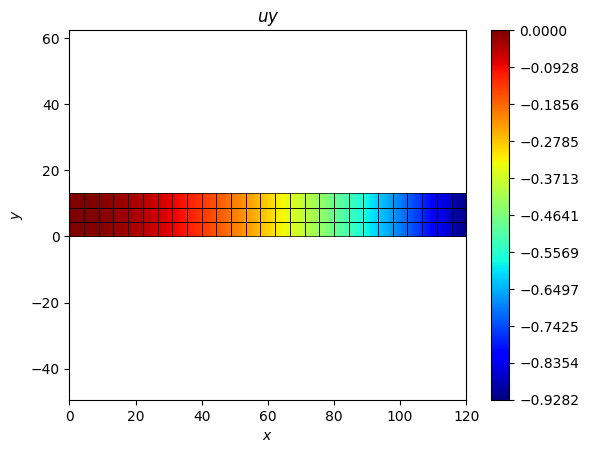
Display.Plot_Result(simu, "uy", plotMesh=True)
Display.Plot_Result(simu, "Svm", plotMesh=True, ncolors=11)
<Axes: title={'center': '$\\sigma_{vm}$'}, xlabel='$x$', ylabel='$y$'>
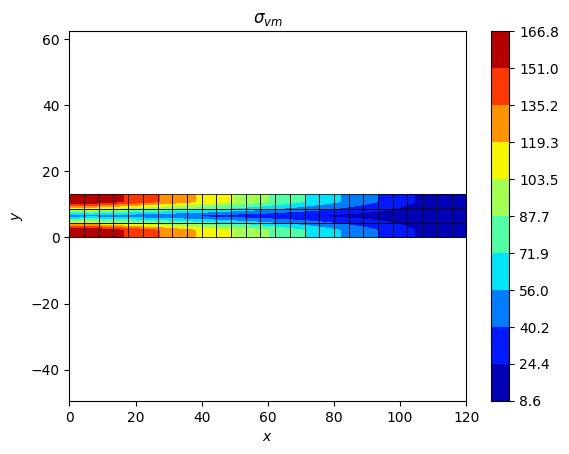
This script is available in the HelloWorld example.
Next steps#
I want to … |
Guide |
|---|---|
Describe a geometry |
|
Create a mesh from scratch |
|
Choose a material model |
|
Apply loads and constraints |
|
Import an external mesh file |
|
Visualize and export results |
|
Understand what happens inside |
For the full list of available simulations and API details, see the examples and API reference.