Create a mesh#
A mesh is a discrete representation of the continuous simulation domain / geometry.
Meshes are produced by Mesher (which wraps Gmsh) and
are accessible in the EasyFEA.FEM module.
Note
To import an existing mesh file instead of creating one from scratch, see Import a mesh.
See also
FEM API
Geometry objects#
Mesh generation relies on manipulating the geometric objects listed below, which are available in the EasyFEA.Geoms namespace:
Class |
Description |
|---|---|
Single point; optional fillet radius |
|
Straight segment between two points |
|
Full circle defined by center and diameter |
|
Circular arc (from radius, center, or on-circle point) |
|
Closed polygon / spline from a list of points |
|
Closed loop assembled from |
|
Axis-aligned rectangle or box defined by two corners |
meshSize on any geometry object sets the local target element size.
Tip
All examples below use Display (matplotlib) for inline output.
For interactive 3D visualization, replace Display.Plot_Mesh(mesh) with
PyVista.Plot_Mesh(mesh) — see Post-process simulation results.
2D mesh#
Mesh_2D() meshes the surface of the geometry,
with optional inclusions (holes, filled regions), cracks, and local
refinement.
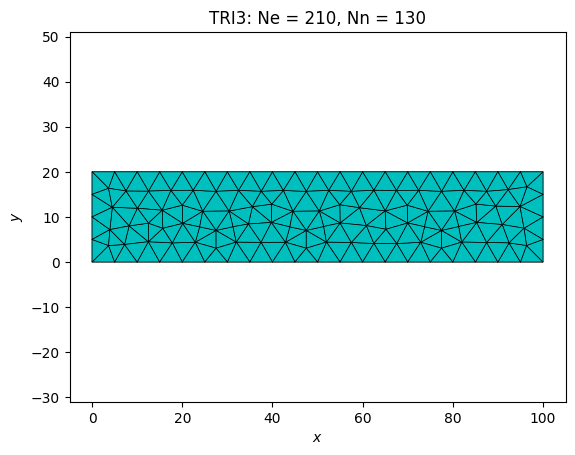
Simple rectangle#
from EasyFEA import Display, ElemType
from EasyFEA.Geoms import Domain

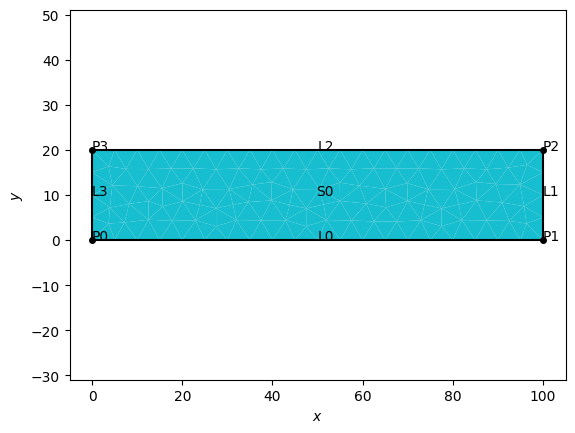
domain = Domain((0, 0), (100, 20), meshSize=5.0)
mesh = domain.Mesh_2D([], ElemType.TRI3)
Display.Plot_Mesh(mesh)
Display.Plot_Tags(mesh)
<Axes: xlabel='$x$', ylabel='$y$'>
Rectangle with a circular hole#
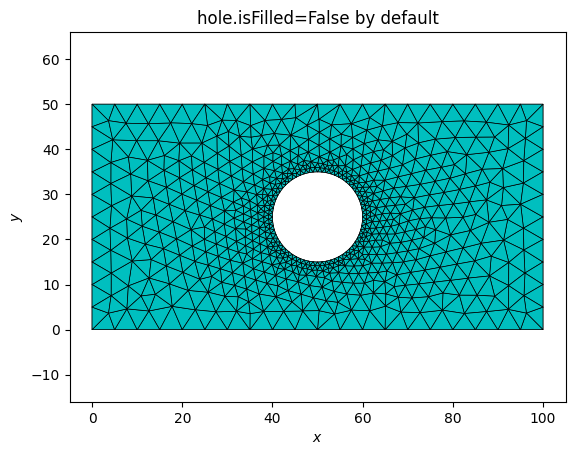
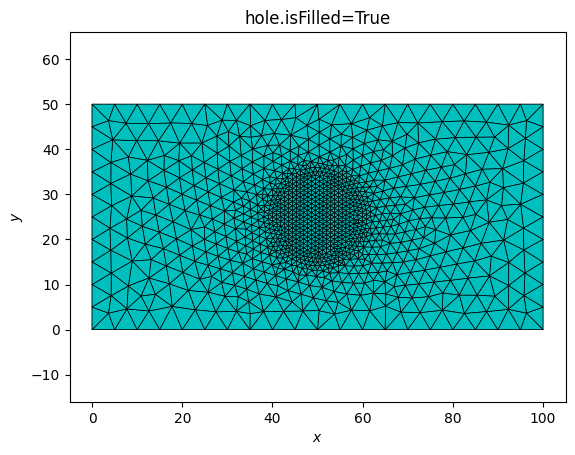
When the geometry is not used as a contour in Mesh_* functions isFilled=False (the default) means the geometry defines a hole or boundary only; isFilled=True means it defines a filled region.
from EasyFEA import Display, ElemType
from EasyFEA.Geoms import Domain, Circle

domain = Domain((0, 0), (100, 50), meshSize=5.0)
hole   = Circle(center=(50, 25), diam=20, meshSize=1.0)

mesh = domain.Mesh_2D([hole], ElemType.TRI6)
Display.Plot_Mesh(mesh, title="hole.isFilled=False by default")

hole.isFilled=True
mesh = domain.Mesh_2D([hole], ElemType.TRI6)
Display.Plot_Mesh(mesh, title="hole.isFilled=True")
<Axes: title={'center': 'hole.isFilled=True'}, xlabel='$x$', ylabel='$y$'>
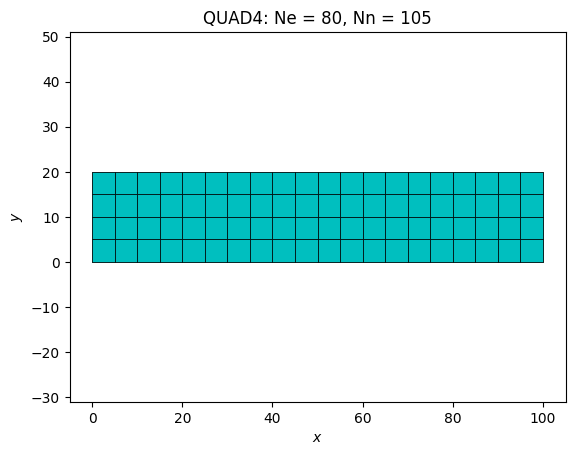
Structured quad mesh#
By setting isOrganised=True, you obtain a structured mesh that requires a structurable polygon consisting of four or three segments:
from EasyFEA import Display, ElemType
from EasyFEA.Geoms import Domain

domain = Domain((0, 0), (100, 20), meshSize=5.0)
mesh = domain.Mesh_2D([], ElemType.QUAD4, isOrganised=True)
Display.Plot_Mesh(mesh)
<Axes: title={'center': 'QUAD4: Ne = 80, Nn = 105'}, xlabel='$x$', ylabel='$y$'>
3D mesh by extrusion#
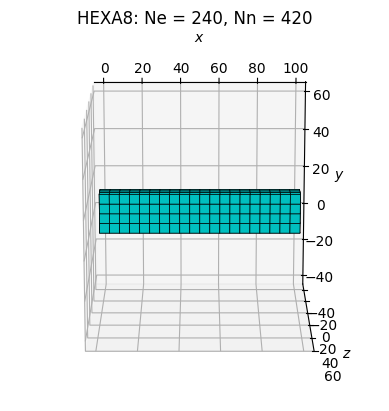
Mesh_Extrude() creates a 3D volume by
extruding a 2D surface along a direction vector.
from EasyFEA import Display, ElemType
from EasyFEA.Geoms import Domain

domain = Domain((0, 0), (100, 20), meshSize=5.0)
mesh = domain.Mesh_Extrude(
    extrude=(0, 0, 10),   # extrusion direction and length
    layers=[3],            # number of layers along the extrusion
    elemType=ElemType.HEXA8,
    isOrganised=True,
)
Display.Plot_Mesh(mesh)
<Axes3D: title={'center': 'HEXA8: Ne = 240, Nn = 420'}, xlabel='$x$', ylabel='$y$', zlabel='$z$'>
3D mesh by revolution#
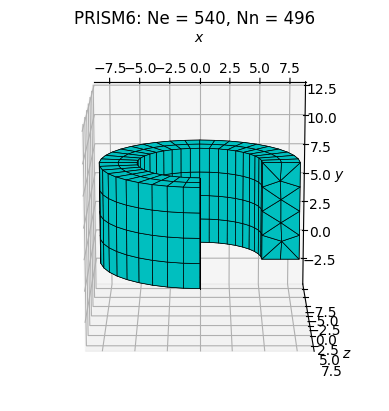
Mesh_Revolve() sweeps a 2D cross-section
around an axis to create an axisymmetric volume.
from EasyFEA import Display, ElemType
from EasyFEA.Geoms import Domain, Line, Point

cross_section = Domain((5, 0), (8, 8), meshSize=2.0)

# revolution axis: Y-axis
axis = Line((0, 0), (0, 1))

mesh = cross_section.Mesh_Revolve(
    axis=axis,
    angle=270,
    layers=[30],    # number of angular divisions
    elemType=ElemType.PRISM6,
)
Display.Plot_Mesh(mesh)
<Axes3D: title={'center': 'PRISM6: Ne = 540, Nn = 496'}, xlabel='$x$', ylabel='$y$', zlabel='$z$'>
Element types#
The types of isoparametric geometric elements that can be used to discretize the domain are available in the ElemType class.